
Remove Gemini watermark.
Automatic removal. No brushing.
Upload your Gemini image and click Remove watermark. AI automatically finds the visible bottom-right sparkle and repairs the corner, with no brushing or cropping. Compare the result and download PNG.
- Automatic sparkle detection
- No manual selection
- No cropping needed
CONTROLS
Upload a photo
01 / 03Upload a Gemini image. No brushing needed.
Keep this page open.
Adjust selection
Sign in with Google. Your first sign-in includes 1 credit.
Try an example: · · · · ·
Use this Gemini watermark remover to repair the visible bottom-right sparkle automatically. Sign in with Google, upload the full Gemini image and click Remove watermark. No circling or brushing is needed. Compare the result and download PNG. Hidden provenance signals such as SynthID are outside this workflow.
What does a Gemini watermark remover change?
A Gemini watermark remover repairs the visible sparkle in an existing image. ImgUnmark automatically asks AI to identify the sparkle within a bounded bottom-right search area, then reconstruct its background. You do not need to draw a selection.
ImgUnmark accepts JPG, PNG and WebP and downloads PNG. Pixels outside the corner search area are copied from the editing image. Inputs above a 2048-pixel long edge are resized first. Detail inside the repaired corner can change; compare the result before using it.
Where Gemini corner repair fits, and where it struggles
- ·Original bottom-right sparkle: The Gemini watermark remover searches this corner automatically. Start with the full export rather than moving or cropping the mark.
- ·Plain colour and gradients: Inspect the transition after Gemini watermark removal. A smooth corner gives fewer outlines for reconstruction to interrupt.
- ·Leaves, texture and lettering: Covered detail is estimated. Compare leaf edges, grain and small type at a readable size before using the result.
- ·A sparkle in another location: The automatic search is bounded to the bottom-right corner. Use the general homepage editor to select a moved or cropped mark manually.
- ·Hidden provenance: This workflow repairs visible pixels. It does not remove SynthID or promise to make an image appear human-made.
Six layouts. One visible Gemini corner to repair.
From a birthday card to a client proposal, Gemini watermark removal should fit the image you want to use. Compare two original Gemini inputs and four AI-generated workflow demonstrations with recreated sparkles. All After images are actual local Quick repairs; the automatic Gemini watermark remover above uses AI and may produce different results.
Your post is ready. Keep the illustration in frame.
You have picked a burgundy illustration for a launch post, and its edge-to-edge gradient fits the layout. Cropping away the sparkle would change that framing. To remove Gemini watermark pixels in your own image, upload the original export to the automatic Gemini watermark remover. Use this saved corner-repair comparison to inspect the color transition before placing the PNG behind your post copy. Try Gemini removal on this illustration.
Saved local Quick repair · automatic AI results may differ.
Example details & source
Native pale four-point sparkle in the bottom-right; no added text or outline. Actual ImgUnmark Quick repair.
Public Gemini input example published by GPT Watermarker. After: independently processed by ImgUnmark, not that site’s output. Original source
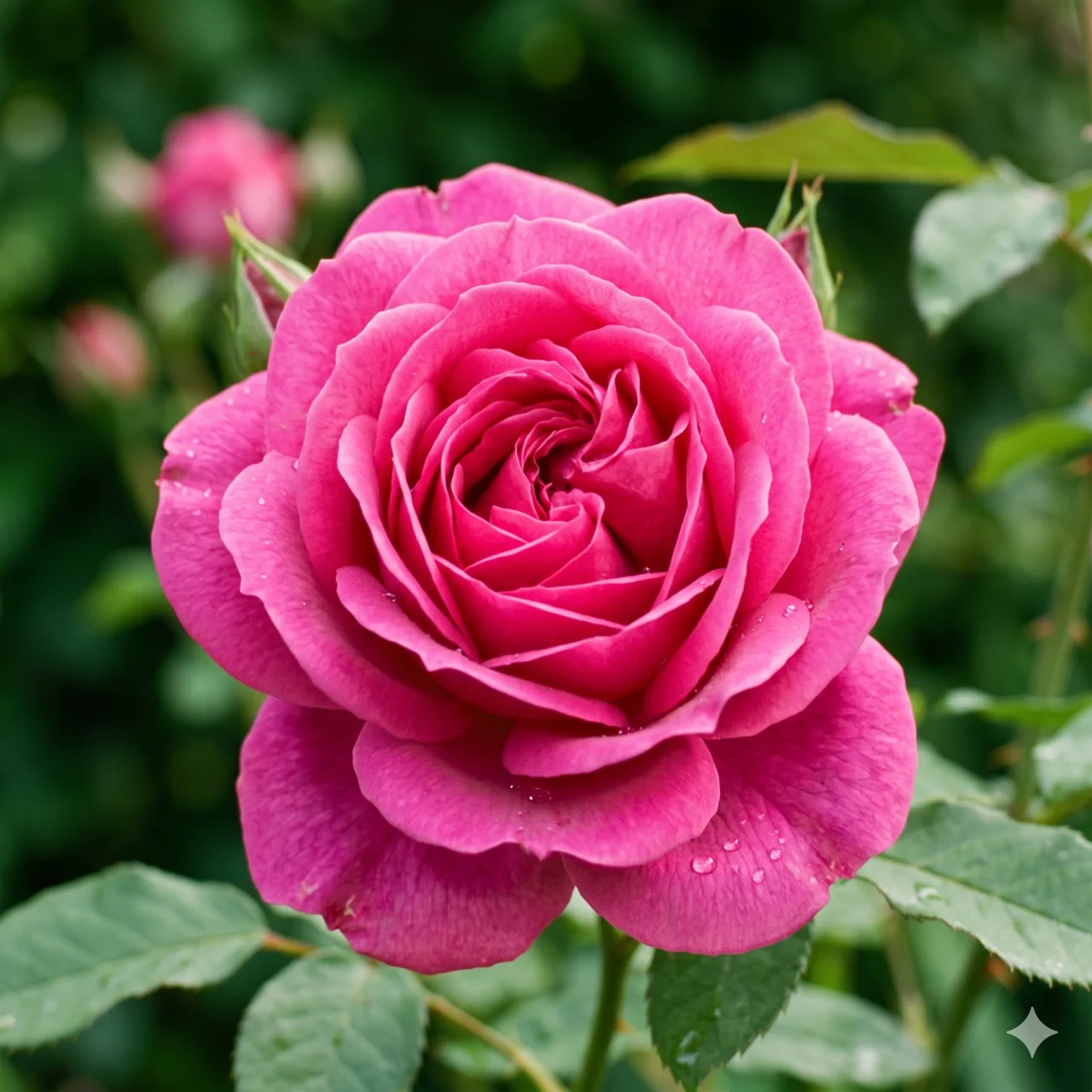
Finish the flower card without cutting off the leaves.
You are making a birthday card, and the lower leaves balance the space for your message. The pale corner sparkle sits just where the floral border should continue. Use Gemini watermark removal on the full image rather than cropping the foliage away. When you remove watermark from Gemini images with fine leaves, compare their edges and texture before adding your greeting. This saved repair shows which details deserve a closer look. Try Gemini removal on this flower image.
Saved local Quick repair · automatic AI results may differ.
Example details & source
Native pale four-point sparkle over the lower-right flower/leaf background. Actual ImgUnmark Quick repair.
Public Gemini rose input published by GPT Watermarker. After: independently processed by ImgUnmark. Original source
Send the proposal with the full visual in place.
Your client deck is due this afternoon. The courtyard concept fits the title slide, but a white corner sparkle interrupts the warm paving. Use the Gemini watermark remover on your original export without recropping the pavilion. After Gemini watermark removal, inspect the stone texture and shadow blend before placing the PNG in your deck. This generated demonstration shows a recreated sparkle and its actual local repair. Remove the Gemini watermark for your slide.
Saved local Quick repair · automatic AI results may differ.
Example details & source
AI-generated scene with a recreated Gemini-style sparkle. After: actual ImgUnmark local Quick repair; automatic AI results may differ.
Keep the space you planned for your article headline.
Your article about focused work is ready, and the desk illustration leaves space for its headline. Cropping away the corner sparkle would tighten that composition. To remove Gemini watermark pixels, upload the uncropped image and compare the repaired corner. Inspect the teal paper texture after Gemini sparkle removal, then add the headline in your publishing tool. This generated desk scene demonstrates a recreated mark with an actual local repair. Clean the Gemini corner for your article.
Saved local Quick repair · automatic AI results may differ.
Example details & source
AI-generated scene with a recreated Gemini-style sparkle. After: actual ImgUnmark local Quick repair; automatic AI results may differ.
Finish the post before your publishing slot.
Your cafe launch caption is approved, and the matcha-and-croissant image is ready for the next post. Then you notice a sparkle where you planned to add your branding. To remove Gemini logo marks in that corner, upload the original image to the Gemini watermark remover. Check the repaired green backdrop at posting size before adding your logo in your design app. The image here is a generated demonstration with a recreated sparkle and actual local repair. Remove the Gemini sparkle for your post.
Saved local Quick repair · automatic AI results may differ.
Example details & source
AI-generated scene with a recreated Gemini-style sparkle. After: actual ImgUnmark local Quick repair; automatic AI results may differ.
Get tomorrow's lesson illustration ready.
Tomorrow's water-cycle lesson is almost ready, but the bright corner star competes with the lake illustration. Use Gemini watermark removal before placing your image in the slide deck. When you remove watermark from Gemini images for teaching, inspect the water texture and keep the arrows, mountain outlines and lesson facts under review. This generated teaching scene shows a recreated sparkle and actual local repair; add your own labels in the slide editor. Prepare your Gemini lesson image.
Saved local Quick repair · automatic AI results may differ.
Example details & source
AI-generated scene with a recreated Gemini-style sparkle. After: actual ImgUnmark local Quick repair; automatic AI results may differ.
How to remove a Gemini watermark without cropping
- Upload the original framing. Sign in with Google and open JPG, PNG or WebP up to 10 MB in the Gemini watermark remover. Larger images are resized to a 2048-pixel editing edge.
- Remove the visible sparkle. Click Remove watermark. AI looks for the bottom-right sparkle and repairs the corner automatically, without a brush selection.
- Check the corner and save. Compare gradients, leaves and outlines after Gemini watermark removal, then download PNG for your post, card or slide.
Frequently asked questions
How do I remove a Gemini watermark from an image?+
To remove watermark from Gemini images, upload the full image and click Remove watermark. AI automatically identifies the visible bottom-right sparkle and repairs the corner. No brushing or circling is needed. Compare the result and download PNG.
Do I need to circle or brush over the Gemini watermark?+
No. The Gemini watermark remover looks for the visible sparkle automatically within the bottom-right corner. Upload the image and click Remove watermark. If cropping or editing has moved the mark elsewhere, use the manual photo editor on the home page.
Can I remove the Gemini logo without cropping?+
Yes. The automatic Gemini watermark remover repairs the corner without cropping the composition and retains the editing image dimensions.
Will the sparkle disappear cleanly on a detailed background?+
Gemini watermark removal depends on what the sparkle covers. A smooth gradient is easier than fine foliage or lettering. Compare the result at full size; texture inside the repaired corner may soften or change.
Does this remove SynthID or AI provenance?+
No. This Gemini watermark remover repairs visible image pixels. It does not remove hidden provenance or make claims about detection evasion.
Which images and output sizes are supported?+
Use JPG, PNG or WebP up to 10 MB. Gemini watermark removal edits at up to a 2048-pixel long edge, resizing larger inputs first, and exports PNG.
Is the Gemini watermark remover free?+
Your first Google sign-in includes 1 free credit, enough for one repair. Each further repair uses another credit. Comparing and downloading an existing result do not cost additional credits. Choose a one-time credit pack when you need more; no subscription is required.
Is ImgUnmark connected to Google or Gemini?+
No. ImgUnmark provides an independent editor for visible Gemini watermark removal. Google accounts, source export settings and hidden provenance remain separate.
Further reading
- Official documentationGoogle: Manage watermark settings in Gemini Apps↗
Visible settings, availability exceptions and the distinction from SynthID/C2PA.
- Official documentationGoogle: Verify AI-generated images, videos, and audio↗
Official explanation of provenance verification; checked November 4, 2026.
Remove the Gemini sparkle automatically.
Start automatic Gemini watermark removalEdit only files you own or have permission to modify. A repaired image does not create usage rights. Acceptable Use