
Canva Watermark Remover

Repair a flattened design while keeping its useful text in view.

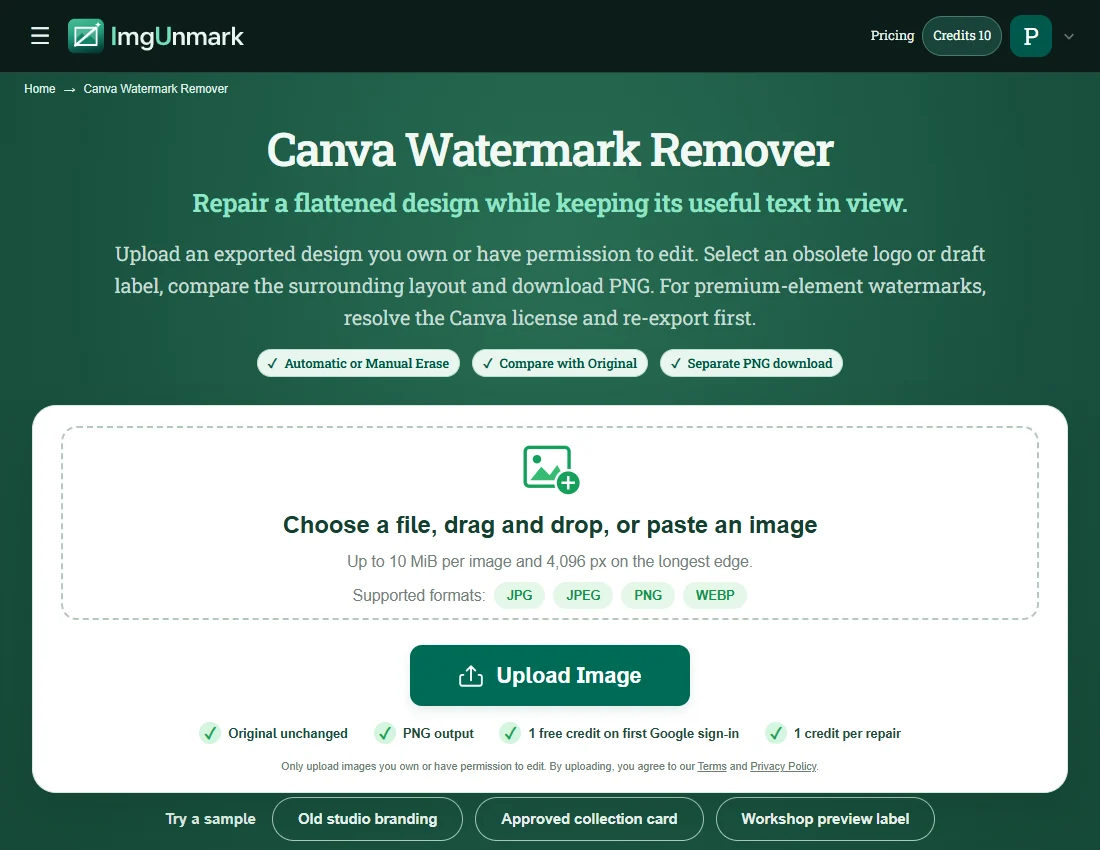
Upload an exported design you own or have permission to edit. Select an obsolete logo or draft label, compare the surrounding layout and download PNG. For premium-element watermarks, resolve the Canva license and re-export first.

  • Automatic or Manual Erase
  • Compare with Original
  • Separate PNG download
  • Original unchanged
  • PNG output
  • 1 free credit on first Google sign-in
  • 1 credit per repair

Try a sample

  • Stripe checkout
  • One-time payment · No subscription
  • Credits never expire
Quick answer

To remove a watermark from a Canva design, first identify its source. Canva says premium elements can appear watermarked for Free users; a free template does not automatically mean a watermarked export. Resolve the element license or replace it and download again when you can. ImgUnmark handles permitted visible marks in an existing JPG, PNG or WebP, not Canva project files, premium access or editable design layers.

Canva Watermark Remover — Features & Limits

Choose a method for the overlay in your actual file. Review both the repaired area and the content you want to keep.

FeatureWhat ImgUnmark offers
Input and outputOne JPG, PNG or WebP up to 10 MiB and 4,096 px on the longest edge. Download a separate PNG; this workflow edits still-image pixels.
Focused manual repairManual Erase preserves input dimensions and pixels outside your selection. Select up to 20% of the image per repair; do not select the full frame.
Automatic repairAutomatic attempts visible overlays without brushing. Its output dimensions, framing and fine detail may differ; compare the entire result before use.
Scene-specific reviewIf the Canva project is available, remove your own obsolete overlay there and re-export. This avoids reconstructing the background and keeps original type sharp. Image repair is useful when the editable source is no longer accessible.
Sign-in and pricingGoogle sign-in is required. First sign-in includes one welcome credit. Each new repair uses one credit; comparing and downloading an existing result use no extra credits. Confirmed failed repairs return the credit.
Privacy and storageAI repair sends image content to a processing service. Originals, selection masks and results remain in private storage without automatic expiry. See the Privacy Policy for the current handling of your images.

Repair estimates hidden content and does not grant usage rights. Privacy Policy · Acceptable Use

What does a Canva watermark remover repair?

A Canva watermark remover can mean two different tasks: resolving premium content inside Canva, or repairing pixels in an exported image. The first task belongs in the original project, where you can replace an element or obtain the appropriate license. The second task concerns an already flattened image that contains an obsolete mark you are allowed to edit. This page provides the image-repair workflow.

A search for canva free template watermark often starts with a misunderstanding. Canva’s official guidance links watermarks to premium elements for Free users, not simply to selecting a free template. Check the design for premium content before exporting. A clean licensed export is preferable to reconstructing covered pixels, and it retains the design’s actual typography and edges. ImgUnmark does not purchase, unlock or validate Canva content licenses.

When you have permission to remove watermark from canva design exports, work from a clear PNG or another supported still image. Manual Erase can target an old brand badge or draft stamp while preserving unselected parts of the layout. It cannot restore separate text boxes, edit a template link, change a Canva account plan or produce an editable project. Keep the original design file for future copy changes.

Source guidance checked November 13, 2026: Canva official help · Canva official help

Where Canva image repair fits, and where it needs care

  • Check the editable source first: If the Canva project is available, remove your own obsolete overlay there and re-export. This avoids reconstructing the background and keeps original type sharp. Image repair is useful when the editable source is no longer accessible.
  • Protect deliberate headings: A poster can contain both a draft label and useful text. Select only the unwanted overlay. Keep headlines, prices and contact information outside the mask, then compare every nearby character after the repair.
  • Watch flat colours and gradients: Simple backgrounds may make a small label easier to repair, but even a pale colour shift becomes obvious in a minimal layout. Check the repaired area next to the original background at normal viewing size.
  • Use Automatic with review: Automatic can attempt visible stamps without a selection, yet a promotional word or logo might be meaningful design content. Manual Erase is a clearer starting point when the image contains text that must remain exactly readable.
  • Do not treat reconstruction as licensing: A repaired export does not change the terms for an element, photograph or template. Resolve premium content in Canva and keep the relevant usage permission. Return to the source when exact typography or a licensed clean asset is needed.

Four Canva image-repair scenarios

Generated fictional inputs illustrate permitted edits. After images, where shown, are actual saved repair-engine outputs, not generated clean originals. Inspect each pair and its method note.

Overlay to inspect: the lower-right OLD STUDIO stamp.

Click an image to inspect the full-size file.

Old studio branding

Retire an old studio stamp

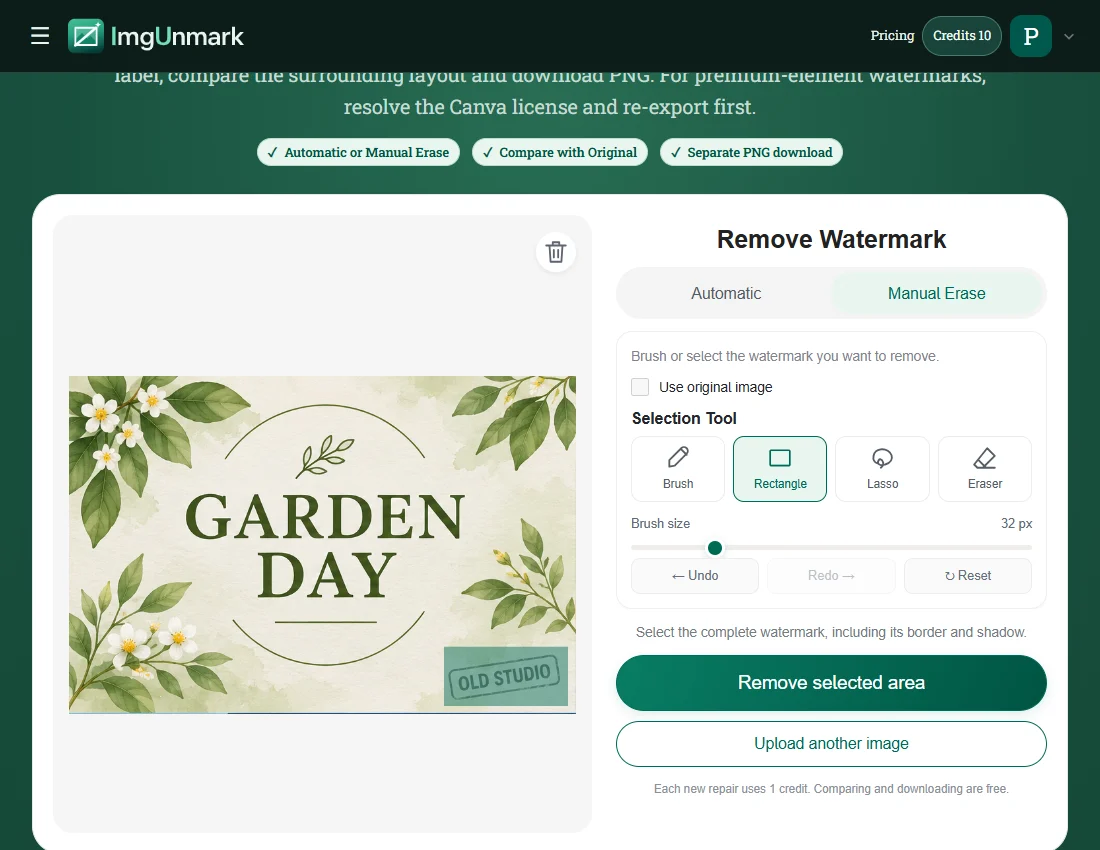
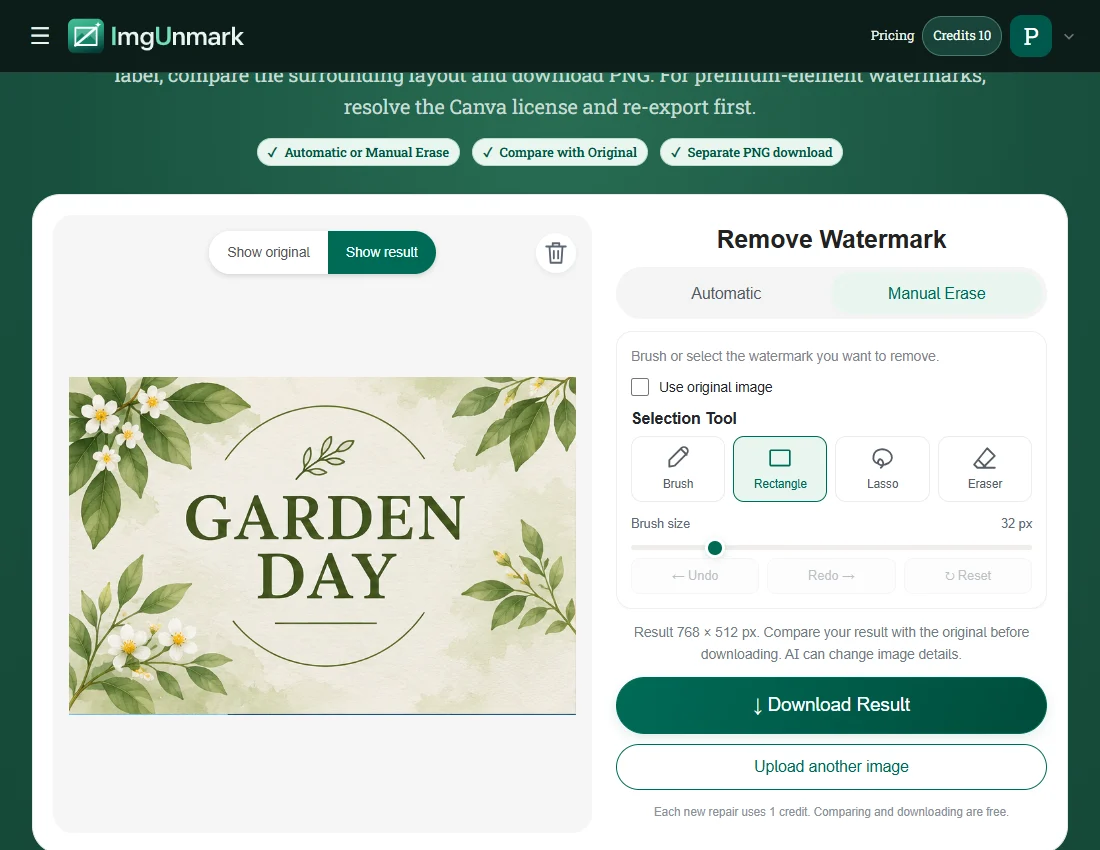
A designer owns a botanical event card but only has its flattened export. The GARDEN DAY headline is intentional; the small OLD STUDIO stamp in the corner is obsolete. Select the corner stamp alone, keeping leaf outlines and the headline outside the mask. Compare the pale background and nearby decoration in the saved result. This fictional graphic demonstrates a retired-brand edit, not a premium Canva element being unlocked. Try this input.

Actual Manual Erase output on a generated fictional input. Pixels outside the selection are unchanged. Individual results can differ. The selected label is removed; surrounding unselected pixels are unchanged.
Overlay to inspect: the lower-left DRAFT stamp.

Click an image to inspect the full-size file.

Approved collection card

Remove your own draft label

A pottery seller has approved a collection graphic that still carries a DRAFT stamp from the internal review process. The useful NEW COLLECTION headline and the product photograph must stay intact. Select the separate draft label with a small margin around its letters. Inspect the repaired background and the nearest pottery edge, then save a new PNG for the approved campaign. Retain the draft original as a separate working record. Try this input.

Actual Manual Erase output on a generated fictional input. Pixels outside the selection are unchanged. Individual results can differ. The selected label is removed; surrounding unselected pixels are unchanged.
Overlay to inspect: the upper-right PREVIEW label.

Click an image to inspect the full-size file.

Workshop preview label

Prepare a workshop graphic

A workshop organiser needs the final image version of a blue geometric poster. CREATE TOGETHER is the public headline, while PREVIEW is an obsolete corner label added during review. Keep the headline and geometric boundaries outside the selection wherever possible. After processing, inspect straight edges, colour transitions and the corner at full size. Image repair cannot regenerate an editable Canva template or confirm a new date in the poster. Try this input.

Actual Manual Erase output on a generated fictional input. Pixels outside the selection are unchanged. Individual results can differ. The selected label is removed; surrounding unselected pixels are unchanged.

Overlay to inspect: the lower-right OLD BRAND logo.

Click an image to inspect the full-size file.

Retired bakery identity

Refresh an owned bakery design

A bakery has updated its identity and wants to reuse an owned social graphic. The FRESH TODAY message remains relevant, but a small OLD BRAND logo no longer belongs in the final image. Select that logo separately from the food and headline. Compare the pastel background for a visible patch and review any nearby decorative lines. This saved repair is specific to the fictional graphic; other layouts can require a different selection. Try this input.

Actual Manual Erase output on a generated fictional input. Pixels outside the selection are unchanged. Individual results can differ. The selected label is removed; surrounding unselected pixels are unchanged.

How to use the Canva Watermark Remover

  1. Check the mark and export an image

    Open the original Canva project if available. If premium content causes the watermark, resolve its license or replace it before downloading. For a permitted old-logo or draft-label edit, export a clear JPG, PNG or WebP. Upload the image rather than a Canva share link, PDF, presentation or design project. Google sign-in is required before a repair.

    Canva practice image: Check the mark and export an imageView screenshot
  2. Select the overlay without the headline

    Choose Manual Erase, then use Rectangle or Brush around the complete unwanted label. Leave meaningful text, product edges and decorative borders outside the selection. If the mark overlaps a headline, expect a higher risk of changed characters and prefer re-exporting the original design. The editor limits manual selection size; do not select the entire poster.

    Canva practice image: Select the overlay without the headlineView screenshot
  3. Review the layout and save PNG

    Compare the result with Original at a readable zoom. Check spacing, letter shapes, straight lines and gradients as well as the missing mark. Download a separate PNG for the approved use. The output is a flattened image, so keep your Canva project for future layout or text edits. A new refinement is a separate repair and uses another credit.

    Canva practice image: Review the layout and save PNGView screenshot

Practice screenshots show the page and a saved real repair result. Account and task responses used to illustrate the interface are simulated; no new repair is submitted for the screenshots.

Frequently asked questions

Why does my Canva design have a watermark?+

Canva’s help centre says premium elements can appear watermarked for Canva Free users. Check those elements in the original design and resolve their license or replace them. A free template alone does not establish why a watermark appeared in an exported image.

Does a Canva free template always export with a watermark?+

No. Do not assume that free templates automatically receive a Canva brand watermark. Review the actual elements used in the design. When the editable source is available, exporting an appropriately licensed version is preferable to reconstructing pixels in a watermarked draft.

Can ImgUnmark unlock Canva premium content?+

No. ImgUnmark repairs image pixels and does not change your Canva plan, purchase an element license or grant usage rights. Resolve premium content through Canva. Use this image workflow only for a mark you are permitted to remove from an existing export.

Can I upload a Canva project link or PDF?+

This page accepts JPG, PNG or WebP images. It does not open a Canva share link, edit project layers or return a PDF. Export the page you need as a supported image; the repaired download is PNG and remains a flattened design.

Will my design’s text stay unchanged?+

Manual Erase preserves pixels outside the selected area. Text inside the selection can be reconstructed and may change, so keep useful headings outside the mask and compare them after processing. For exact typography, make the change in the editable project and export again.

What does a repair cost?+

First Google sign-in includes one welcome credit, and each new repair uses one credit. Reviewing and downloading an existing result use no extra credits. A further pass is another repair. The shared pricing section below lists current one-time credit packs without a subscription.

Simple pricing. No subscription.

See full pricing →

Starter

For occasional edits

$6.99one-time

20 credits · 20 edits

Recommended

Pro

For regular creators

$12.99one-time

50 credits · 50 edits

Studio

Best value for studios

$18.99one-time

90 credits · 90 edits

Try the watermark remover with 1 free credit on your first Google sign-in. Each repair uses 1 credit. Prices are in USD.

Try the Canva Watermark Remover on an image you may edit

Upload your image