
Instagram Watermark Remover

Refresh your own photos after a username or brand change.

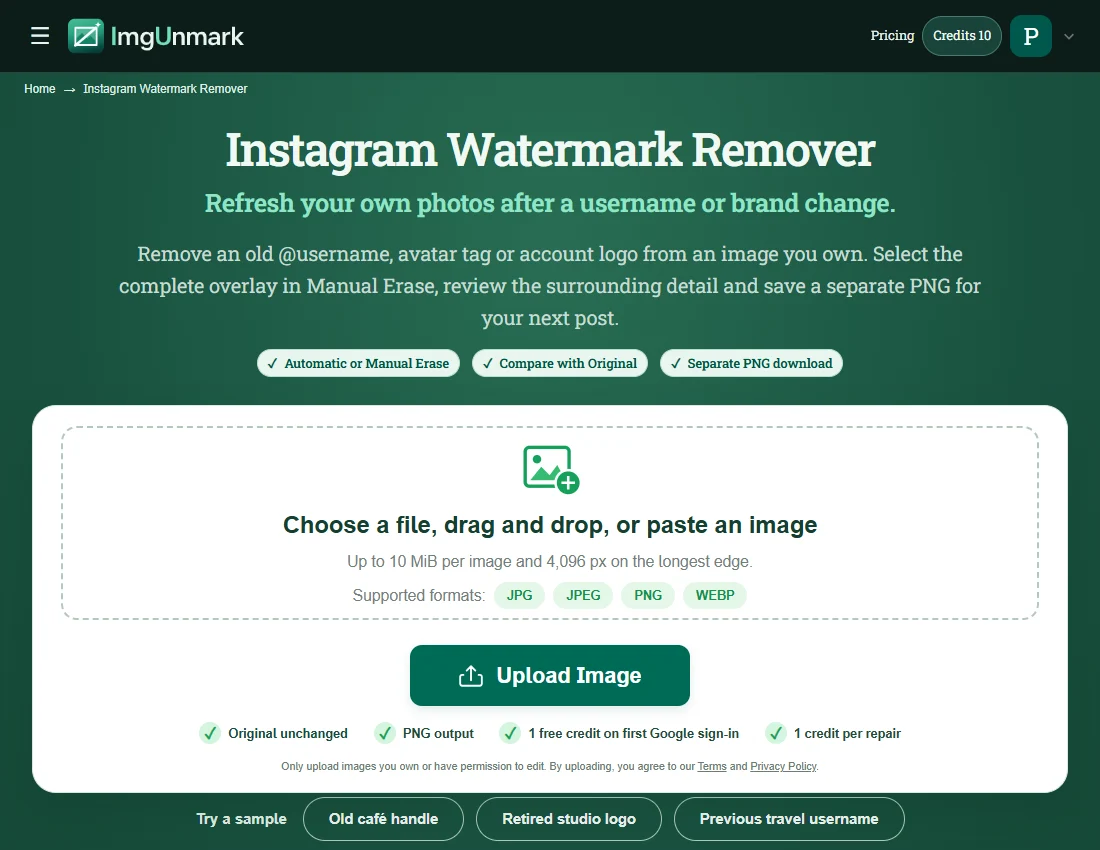
Remove an old @username, avatar tag or account logo from an image you own. Select the complete overlay in Manual Erase, review the surrounding detail and save a separate PNG for your next post.

  • Automatic or Manual Erase
  • Compare with Original
  • Separate PNG download
  • Original unchanged
  • PNG output
  • 1 free credit on first Google sign-in
  • 1 credit per repair

Try a sample

  • Stripe checkout
  • One-time payment · No subscription
  • Credits never expire
Quick answer

An Instagram watermark remover repairs a visible label already baked into a still image. Upload your own photo, sign in with Google and select the old handle or logo in Manual Erase. Compare the repaired corner with the original before downloading PNG. This page handles your own retired branding and permitted repost labels; it does not remove attribution from someone else’s work, edit an Instagram account or process Reels.

Instagram Watermark Remover — Features & Limits

Choose a method for the overlay in your actual file. Review both the repaired area and the content you want to keep.

FeatureWhat ImgUnmark offers
Input and outputOne JPG, PNG or WebP up to 10 MiB and 4,096 px on the longest edge. Download a separate PNG; this workflow edits still-image pixels.
Focused manual repairManual Erase preserves input dimensions and pixels outside your selection. Select up to 20% of the image per repair; do not select the full frame.
Automatic repairAutomatic attempts visible overlays without brushing. Its output dimensions, framing and fine detail may differ; compare the entire result before use.
Scene-specific reviewUse a close Manual Erase selection around your retired @username. Compare the entire word, including the @ symbol and any pale outline, because a faint final letter can remain visible after a quick glance.
Sign-in and pricingGoogle sign-in is required. First sign-in includes one welcome credit. Each new repair uses one credit; comparing and downloading an existing result use no extra credits. Confirmed failed repairs return the credit.
Privacy and storageAI repair sends image content to a processing service. Originals, selection masks and results remain in private storage without automatic expiry. See the Privacy Policy for the current handling of your images.

Repair estimates hidden content and does not grant usage rights. Privacy Policy · Acceptable Use

What does an Instagram watermark remover repair?

An Instagram image can acquire a visible account label when you add branding, save a graphic or use a repost workflow. The mark may contain an @username, a small circular avatar or a logo near an edge. These are possible input patterns, not a claim that Instagram adds the same watermark to every photograph. Identify how the label entered your image before choosing a repair method.

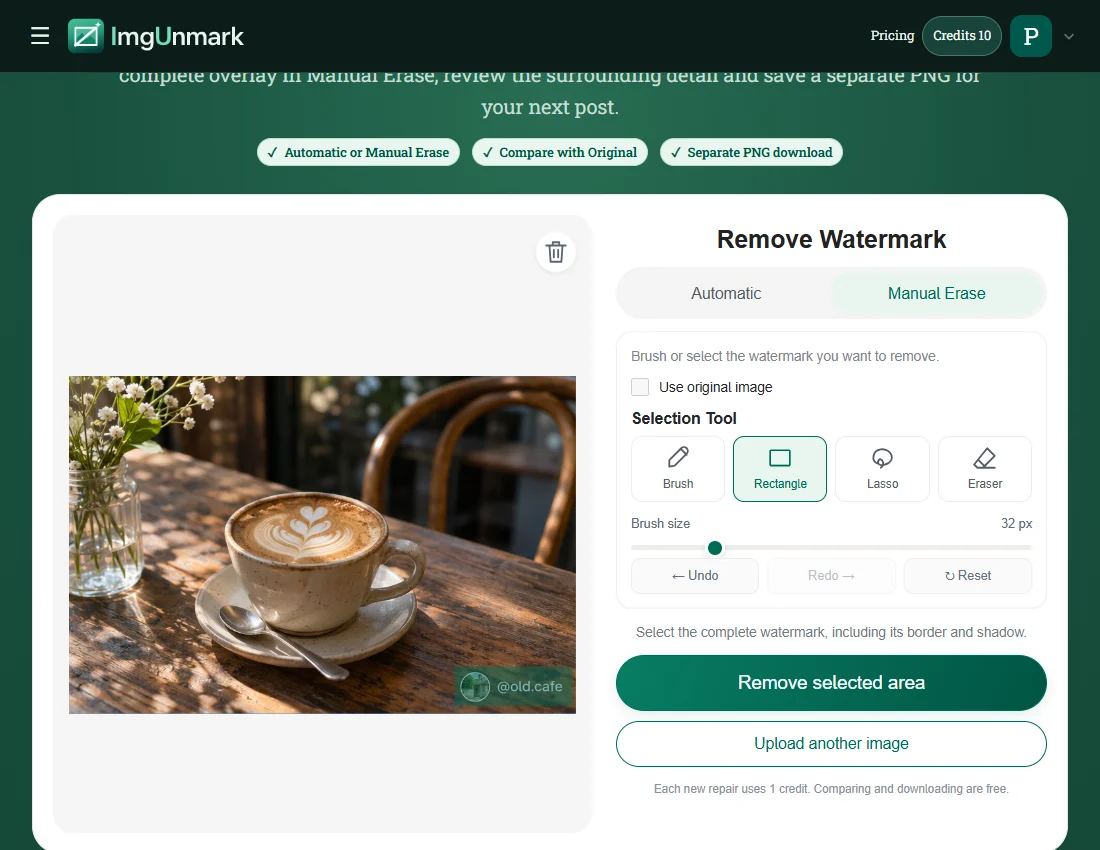
If the original unmarked photo is available, export that version first. It retains real detail instead of estimating pixels hidden by text. When only a flattened copy remains, Manual Erase lets you target a retired account name without selecting the whole scene. Include translucent letter edges and the avatar border, while leaving faces, product lettering and useful captions outside the selection.

The purpose is to prepare your own image for a new account identity or updated brand. Removing a label does not transfer ownership, establish permission to repost or change the rights attached to a photograph. Keep required credits and obtain the creator’s permission for any edit that involves someone else’s material. Downloaded PNG output is a separate image; it does not alter an existing post or its caption.

Where Instagram image repair fits, and where it needs care

  • Old handle near an edge: Use a close Manual Erase selection around your retired @username. Compare the entire word, including the @ symbol and any pale outline, because a faint final letter can remain visible after a quick glance.
  • Username with circular avatar: Treat the text and avatar as one overlay if they belong to your old account. Add a small margin around the circle so the border is included; preserve any nearby subject that must stay recognizable.
  • Logo over a simple background: A blank wall or clear sky provides useful surrounding colour. Check for a rectangular patch, a colour shift or an interrupted gradient before using the photo in a new carousel or profile graphic.
  • Automatic as an alternative: Automatic can look for visible overlays without brushing, but it may interpret small labels differently or alter image detail. For a single predictable corner tag, a manual selection gives a more explicit repair area.
  • Dense detail under the mark: Hair, jewellery, foliage and thin product edges need closer review. If a handle crosses a face or important product lettering, return to your original file rather than treating reconstructed detail as exact.

Four Instagram image-repair scenarios

Generated fictional inputs illustrate permitted edits. After images, where shown, are actual saved repair-engine outputs, not generated clean originals. Inspect each pair and its method note.

Overlay to inspect: the lower-right username and avatar.

Click an image to inspect the full-size file.

Old café handle

Retire a café account handle

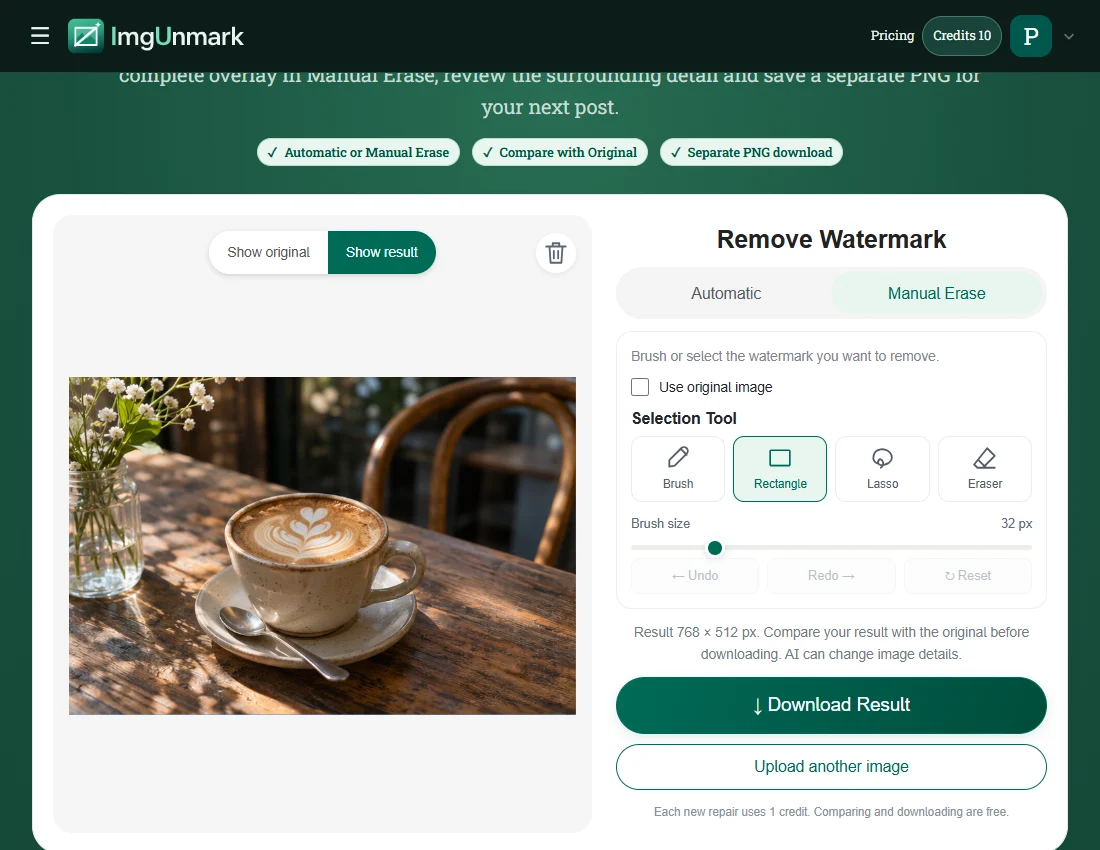
A café owner is reusing a coffee photograph after changing the business account name. The fictional @old.cafe tag and avatar sit over the wooden table at the lower right. Select both parts of the tag, leaving the cup rim and saucer outside the repair. Inspect the tabletop grain and the shadow after processing. The saved pair documents this particular input and repair; it does not establish that every repost app places tags in the same location. Try this input.

Actual Manual Erase output on a generated fictional input. Pixels outside the selection are unchanged. Individual results can differ. The selected label is removed; surrounding unselected pixels are unchanged.
Overlay to inspect: the lower-left OLD STUDIO mark.

Click an image to inspect the full-size file.

Retired studio logo

Update a product photo after rebranding

A maker has a mug photograph with an OLD STUDIO label left from an earlier brand identity. The label is separate from the mug, which makes it possible to select the obsolete branding without covering the product outline. Compare the background near the base and keep any real product decoration intact. Save the repaired image under a new filename so the original branded version remains available for archive records. Try this input.

Actual Manual Erase output on a generated fictional input. Pixels outside the selection are unchanged. Individual results can differ. The selected label is removed; surrounding unselected pixels are unchanged.
Overlay to inspect: the upper-left previous account handle.

Click an image to inspect the full-size file.

Previous travel username

Reuse your seaside photograph

A travel creator wants to post an older seaside photograph under a new account name. The previous handle appears in the upper-left sky. Select the text and its faint shadow without touching the horizon. Review the sky at a larger zoom, then view the full frame to check that the repaired corner blends into the surrounding light. The output is a still PNG, not a replacement for a video or an edited Instagram post. Try this input.

Actual Manual Erase output on a generated fictional input. Pixels outside the selection are unchanged. Individual results can differ. The selected label is removed; surrounding unselected pixels are unchanged.

Overlay to inspect: the lower-right archive handle and avatar.

Click an image to inspect the full-size file.

Archive repost label

Clean a permitted repost copy

A florist has permission to reuse a flower image from the business archive, but an old account label remains in the saved copy. Select the lower-right handle and avatar rather than brushing across the whole arrangement. Compare petal edges and background texture around the selected area. If the label overlaps a stem or flower, inspect that structure carefully before publication. Keep a separate record of the permission; the image repair itself cannot verify it. Try this input.

Actual Manual Erase output on a generated fictional input. Pixels outside the selection are unchanged. Individual results can differ. The selected label is removed; surrounding unselected pixels are unchanged.

How to use the Instagram Watermark Remover

  1. Upload your own still image

    Choose the highest-quality JPG, PNG or WebP copy that you may edit. A direct image export is preferable to a screenshot with Instagram controls, because interface buttons and compression add extra distractions. Sign in with Google when the tool asks before processing. You do not need to give ImgUnmark your Instagram password or connect a social account.

    Instagram practice image: Upload your own still imageView screenshot
  2. Select the retired label

    Choose Manual Erase and use Rectangle or Brush over the complete old username, avatar or logo. Keep your subject and useful text outside the selected area. Include the pale outline around white lettering. If the editor reports a selection limit, reduce the area instead of selecting the whole image; additional repair passes each use a credit.

    Instagram practice image: Select the retired labelView screenshot
  3. Compare and download PNG

    Review the repaired corner against Original, then inspect the full frame. Look for a remaining @ symbol, blurred wood grain, a broken horizon or a changed petal edge. Download the PNG only when the result suits your use. Reposting, captions and account changes happen separately in Instagram; this tool edits the uploaded image file.

    Instagram practice image: Compare and download PNGView screenshot

Practice screenshots show the page and a saved real repair result. Account and task responses used to illustrate the interface are simulated; no new repair is submitted for the screenshots.

Frequently asked questions

Can I remove an old Instagram username from my own photo?+

Yes. Select a retired handle that you added to your own image, then compare the repaired area. Use the unmarked original when it is available. A flattened copy needs reconstruction where the letters cover the photo, so inspect fine details before reuse.

Does Instagram put a watermark on every photo?+

No universal photo watermark is assumed here. Visible marks can come from your own branding or a repost workflow. This page repairs labels already present in an uploaded image; it does not change Instagram’s export behaviour or remove an account identity from the platform.

Can I erase someone else’s credit or username?+

This workflow is for your own retired branding and edits you have permission to make. Keep attribution that the creator or license requires. Removing a visible credit does not give you the right to repost or present another person’s image as your own.

Does this work on Reels or Instagram video?+

This page accepts still JPG, PNG and WebP images and produces PNG. It does not accept a Reel URL, fetch an Instagram post or export video. Upload a still image you are permitted to edit rather than a link to an account or post.

Should I choose Automatic or Manual Erase?+

For a small corner handle, start with Manual Erase so the intended region is explicit. Automatic is available for visible overlays but its framing and detail can vary. Compare the result before another repair, especially when the label sits beside a person or product.

Is the Instagram watermark remover free to try?+

Your first Google sign-in includes one welcome credit. Each new repair uses one credit, including a further refinement. Comparing and downloading an existing result use no additional credits. More edits use the same one-time credit packs shown below; an Instagram account is not required.

Simple pricing. No subscription.

See full pricing →

Starter

For occasional edits

$6.99one-time

20 credits · 20 edits

Recommended

Pro

For regular creators

$12.99one-time

50 credits · 50 edits

Studio

Best value for studios

$18.99one-time

90 credits · 90 edits

Try the watermark remover with 1 free credit on your first Google sign-in. Each repair uses 1 credit. Prices are in USD.

Try the Instagram Watermark Remover on an image you may edit

Upload your image