
iStock Watermark Remover

Review the centre mark, diagonal repeats and edge credits separately.

Repair a visible stock-preview overlay only when you have permission to edit the image. Compare central lettering, repeated diagonal marks and nearby subject detail before saving a separate PNG.

  • Automatic or Manual Erase
  • Compare with Original
  • Separate PNG download
  • Original unchanged
  • PNG output
  • 1 free credit on first Google sign-in
  • 1 credit per repair

Try a sample

  • Stripe checkout
  • One-time payment · No subscription
  • Credits never expire
Quick answer

An iStock watermark remover works on pixels in an existing still image. For a permitted repair, identify the central logo, diagonal repeats and any separate credit region in your particular file. Use Automatic for a distributed overlay or Manual Erase for a compact area, then compare the result with Original. Start with a clean licensed download whenever possible: reconstruction cannot supply an iStock license or reveal the exact pixels hidden beneath a mark.

iStock Watermark Remover — Features & Limits

Choose a method for the overlay in your actual file. Review both the repaired area and the content you want to keep.

FeatureWhat ImgUnmark offers
Input and outputOne JPG, PNG or WebP up to 10 MiB and 4,096 px on the longest edge. Download a separate PNG; this workflow edits still-image pixels.
Focused manual repairManual Erase preserves input dimensions and pixels outside your selection. Select up to 20% of the image per repair; do not select the full frame.
Automatic repairAutomatic attempts visible overlays without brushing. Its output dimensions, framing and fine detail may differ; compare the entire result before use.
Scene-specific reviewCheck whether the overlay crosses an object boundary, face or important letter. A manual selection makes the target explicit, but any covered detail within it can be estimated. Prefer the clean source when the central subject must remain exact.
Sign-in and pricingGoogle sign-in is required. First sign-in includes one welcome credit. Each new repair uses one credit; comparing and downloading an existing result use no extra credits. Confirmed failed repairs return the credit.
Privacy and storageAI repair sends image content to a processing service. Originals, selection masks and results remain in private storage without automatic expiry. See the Privacy Policy for the current handling of your images.

Repair estimates hidden content and does not grant usage rights. Privacy Policy · Acceptable Use

What does an iStock watermark remover repair?

The useful distinction on this page is between a prominent central wordmark and lighter repeats distributed around it. A central logo can cross the main subject, while diagonal text may be easy to miss near a bright edge. Those are patterns to inspect in the input, not a promise that every iStock preview has an identical arrangement. Preview layouts and saved copies can differ.

Treat each overlay region as a separate review task. First inspect the centre, then follow the diagonal direction toward all four corners, and finally check an edge credit or image identifier if one is present. This order is more useful than assuming that one repaired logo means the whole preview is clean. Dense texture and overlapping thin lines need particular care after reconstruction.

The Getty Images page remains the adjacent option for a Getty-specific credit-block task. This iStock page focuses on reviewing central and repeated marks in a permitted image repair; it does not claim a dedicated iStock detector. Both use the existing image tool, accept supported still files and return PNG. Neither changes the stock provider’s licensing terms, validates ownership or replaces access to a properly licensed original.

Source guidance checked November 13, 2026: iStock official help

Where iStock image repair fits, and where it needs care

  • Central wordmark over the subject: Check whether the overlay crosses an object boundary, face or important letter. A manual selection makes the target explicit, but any covered detail within it can be estimated. Prefer the clean source when the central subject must remain exact.
  • Diagonal repeated lettering: Automatic can attempt visible repeats across the image. Inspect along their diagonal path after processing, including faint letters over pale backgrounds. A broad view helps find the pattern; a closer view helps detect leftover edges or changed texture.
  • Credit or ID near an edge: A credit region can sit apart from the main logo and may be cropped differently in saved previews. Check the original file before choosing a repair. Do not remove attribution that your permission requires you to retain.
  • Small remaining overlay area: For a missed local mark, select a compact patch in Manual Erase while respecting the area limit. Keep unrelated objects outside the mask. Further repairs use additional credits, so compare the saved result before deciding to run another pass.
  • Exact product and document details: AI can alter notebook ruling, boat rigging, pottery edges and other fine structures under an overlay. Evaluate those details against the original. For factual, commercial or print work requiring fidelity, use an appropriately licensed clean asset.

Four iStock image-repair scenarios

Generated fictional inputs illustrate permitted edits. After images, where shown, are actual saved repair-engine outputs, not generated clean originals. Inspect each pair and its method note.

Overlay to inspect: the central sample logo, diagonal repeats and edge credit.

Click an image to inspect the full-size file.

Plant and window preview

Separate plant leaves from central lettering

The fictional plant preview has a central DEMO LIBRARY logo and light diagonal repeats. Compare leaf contours under the central letters, scan the bright window area for remnants and inspect the corner credit. This generated demonstration is not an iStock photograph, and reconstruction cannot establish exact recovery of the covered leaves. Try this input.

Actual Automatic output on a generated fictional input. Individual results can differ. Overlay removed in this saved result; reconstructed texture may differ.
Overlay to inspect: the central sample logo, diagonal repeats and edge credit.

Click an image to inspect the full-size file.

Notebook flat lay

Keep notebook rules and pen edges readable

The notebook flat lay exposes straight ruling, page corners and a narrow pen outline around the overlay. Inspect the central wordmark area, diagonal repeats and corner credit independently. A clean-looking thumbnail can hide a softened edge, so compare the saved pair at a useful zoom before placing it in a layout. Try this input.

Actual Automatic output on a generated fictional input. Individual results can differ. Overlay removed in this saved result; reconstructed texture may differ.
Overlay to inspect: the central sample logo, diagonal repeats and edge credit.

Click an image to inspect the full-size file.

Sailboat and fine lines

Review sailboat rigging and the horizon

The sailboat combines a central subject, thin rigging and smooth sky. Follow the diagonal repeat path, then compare the sail edge, horizon and rigging. Automatic reconstruction changes some fine vessel detail in this saved result. Retrieve the clean original when boat geometry must be accurate for the intended use. Try this input.

Actual Automatic output on a generated fictional input. Individual results can differ. Automatic changes some sail and rigging detail; use the clean original when vessel geometry must be exact.

Overlay to inspect: the central sample logo, diagonal repeats and edge credit.

Click an image to inspect the full-size file.

Pottery shelf preview

Inspect curved bowls and shelf texture

The pottery shelf combines curved rims, wood grain and shadows across several overlay regions. Inspect each surface separately and check that bowl outlines remain continuous. Compare the permitted source and downloaded PNG at full size. This is one actual engine output; another preview can produce different texture or edge changes. Try this input.

Actual Automatic output on a generated fictional input. Individual results can differ. Overlay removed in this saved result; reconstructed texture may differ.

How to use the iStock Watermark Remover

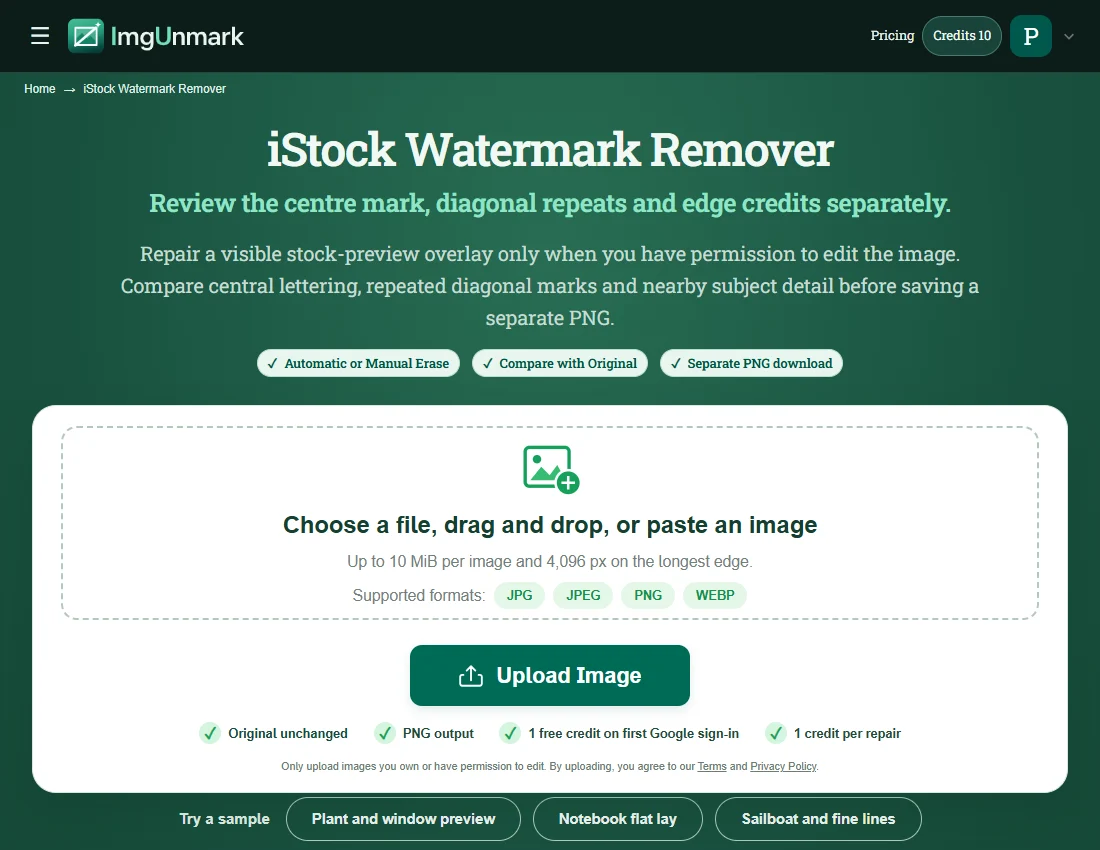
  1. Start with the right source

    Look for your clean licensed download first. If you need a permitted repair of a flattened copy, upload JPG, PNG or WebP with the whole frame intact. Identify the centre logo, repeats and any separate credit before submitting. Sign in with Google for the repair. This tool does not connect to iStock, fetch a preview URL or access a stock account.

    iStock practice image: Start with the right sourceView screenshot
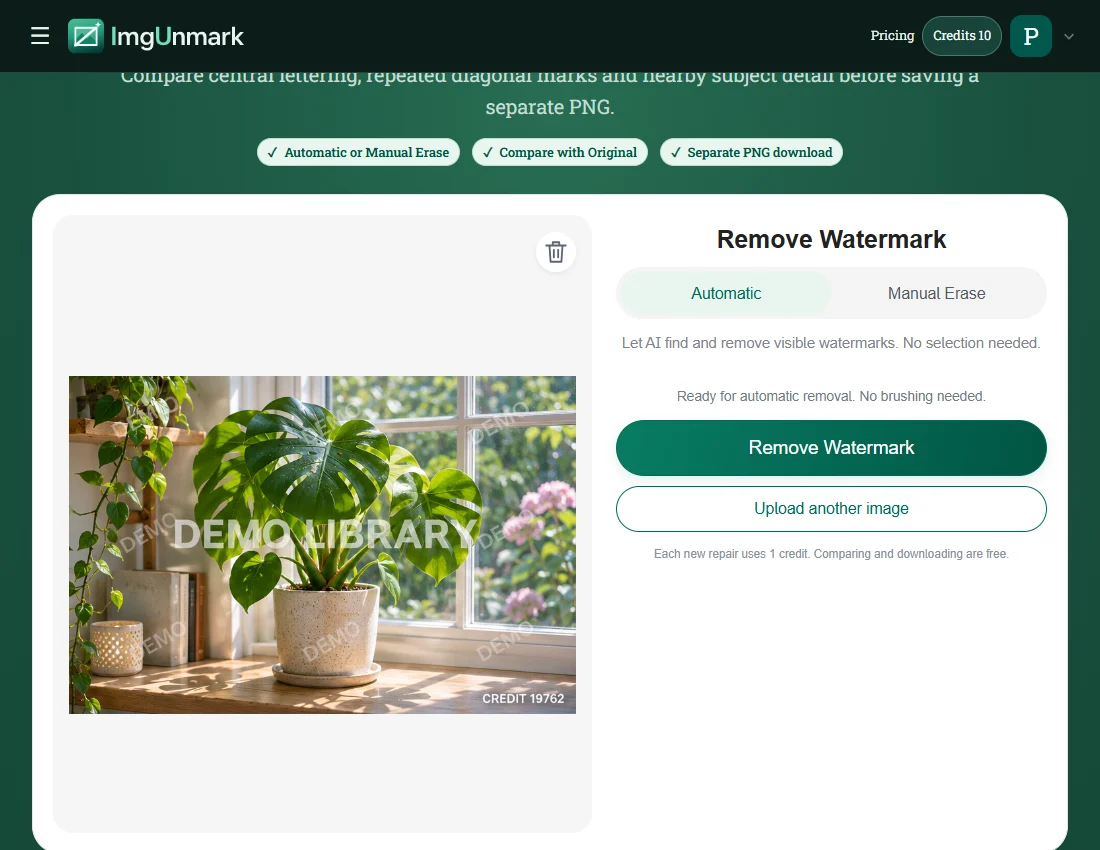
  2. Choose automatic or focused repair

    Use Automatic to attempt a distributed visible overlay without drawing a mask. For a single local mark, Manual Erase lets you select the target with Rectangle or Brush. Keep the selection within the editor’s limit and avoid useful subject detail where possible. A large central overlay or many scattered marks can make a clean licensed source the better choice.

    iStock practice image: Choose automatic or focused repairView screenshot
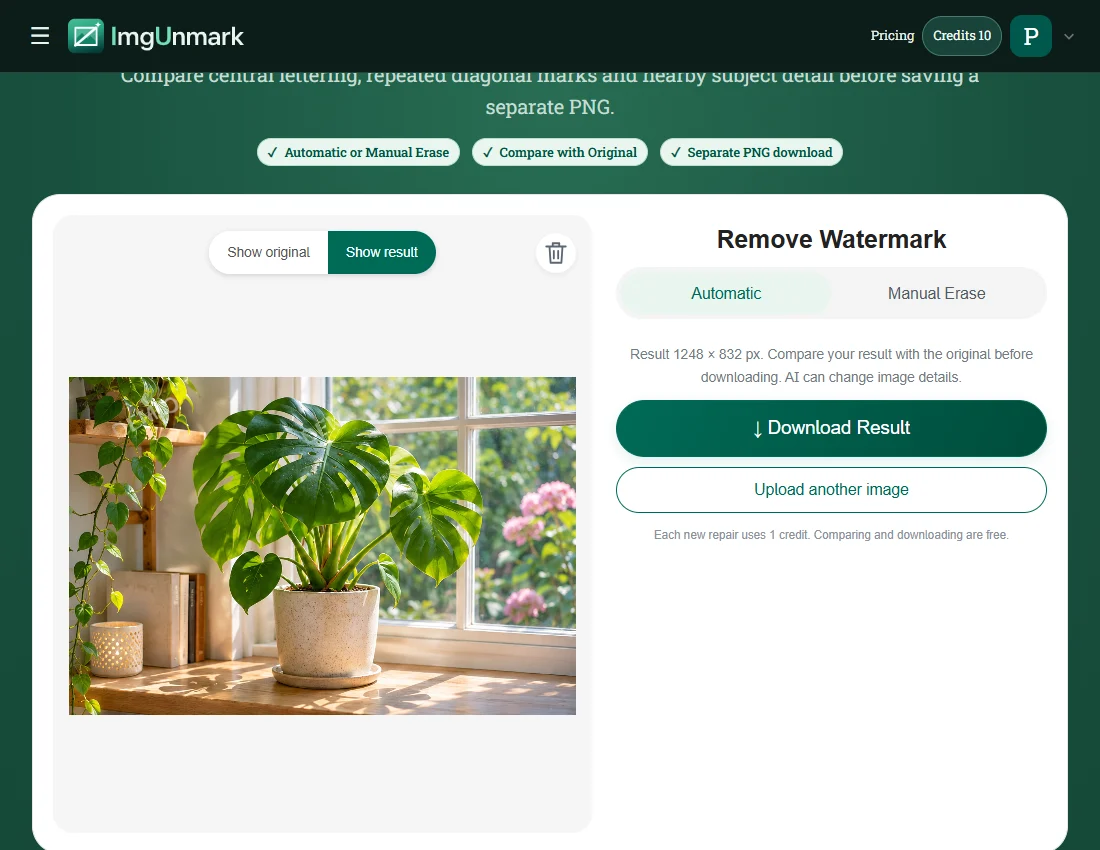
  3. Compare three regions and download

    Review the centre, diagonal repeat path and edge credit independently. Compare subject geometry and texture in the same areas, then check the full composition. Download a separate PNG when the result meets your permitted purpose. If another repair is needed, review the existing output first: a new pass consumes another credit and reconstruction can introduce additional differences.

    iStock practice image: Compare three regions and downloadView screenshot

Practice screenshots show the page and a saved real repair result. Account and task responses used to illustrate the interface are simulated; no new repair is submitted for the screenshots.

Frequently asked questions

How is this different from the Getty Images page?+

This page explains a centre-logo and diagonal-repeat review workflow. The Getty Images page addresses its own credit-block and number scenarios.

Can it remove a centre logo and diagonal repeats together?+

Automatic can attempt visible overlays across the uploaded image, but you must inspect the centre and every repeat path afterward. Manual Erase is available for a compact local area.

Does the tool provide an iStock license?+

No. It repairs image pixels and does not purchase, validate or transfer a stock-image license.

Can I paste an iStock URL or upload a vector?+

This page accepts an uploaded JPG, PNG or WebP still image. It does not fetch iStock links, open EPS vectors or return editable stock assets.

Will covered details be restored exactly?+

No exact recovery is promised. Repair estimates the content hidden under an overlay.

How do credits and downloads work?+

Your first Google sign-in includes one welcome credit. Each new repair costs one credit, including another pass on a previous result.

Simple pricing. No subscription.

See full pricing →

Starter

For occasional edits

$6.99one-time

20 credits · 20 edits

Recommended

Pro

For regular creators

$12.99one-time

50 credits · 50 edits

Studio

Best value for studios

$18.99one-time

90 credits · 90 edits

Try the watermark remover with 1 free credit on your first Google sign-in. Each repair uses 1 credit. Prices are in USD.

Try the iStock Watermark Remover on an image you may edit

Upload your image